

There is not enough room to make this device
Castle says there is not enough room to make a device. How to make room with Free Up Space, what it removes, and how to keep devices on another drive.
You see There is not enough room to make this device, with a note of how far short your disk is, and Try Again keeps what is done. Your Mac’s disk is too full for the system this device needs.
What to do
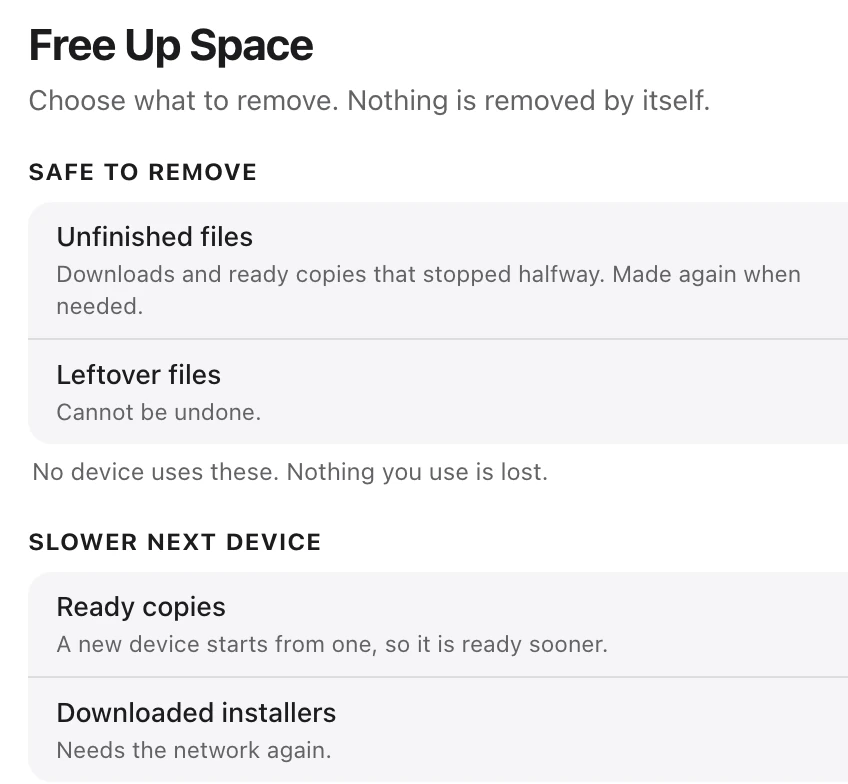
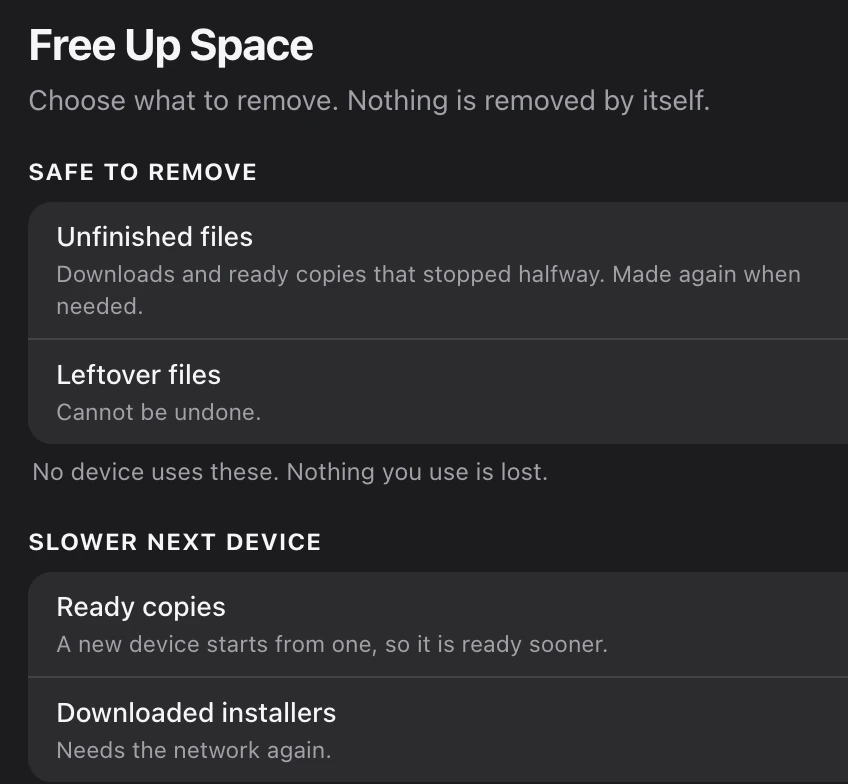
- Choose Free Up Space…. It lists what Castle holds that can go, and nothing is removed until you choose it. Castle never removes a device or a snapshot on its own.
- Tick what you want gone. Unfinished files and leftover files are safe to remove. Removing a ready copy or a downloaded installer makes the next device slower, because it has to be made or downloaded again.
- Choose Try Again. Castle keeps what it already did, so it carries on where it stopped.
Other ways to make room
- Remove a device you don’t use. Removing is not the same as turning off: the device and its data are gone, and you can’t get them back.
- Clear a paused device’s saved state. Free Up Space lists it as saved memory. The device then starts from the beginning.
- Keep devices on another drive. In Settings › Storage, Where devices live has a Change… button.
Settings › Storage also shows how much of your disk Castle holds, in Castle’s own row, and what is shared with other apps.
Good to know
Making a new device needs room to download and set up its system. For what Castle says when memory runs short, see Your Mac is short of memory now.