

Your own iPhone (beta)
Castle lets your agent use your own iPhone through Apple's iPhone Mirroring on your Mac. It is a beta: what works, what doesn't yet, and when it stops.
By the end of this page you will know how to give your agent your own iPhone, and the limits of the beta.
Beta. iPhone support is new and still being tested. It works through Apple’s iPhone Mirroring, so it has more limits than the other devices, and some of them may change.
Add it
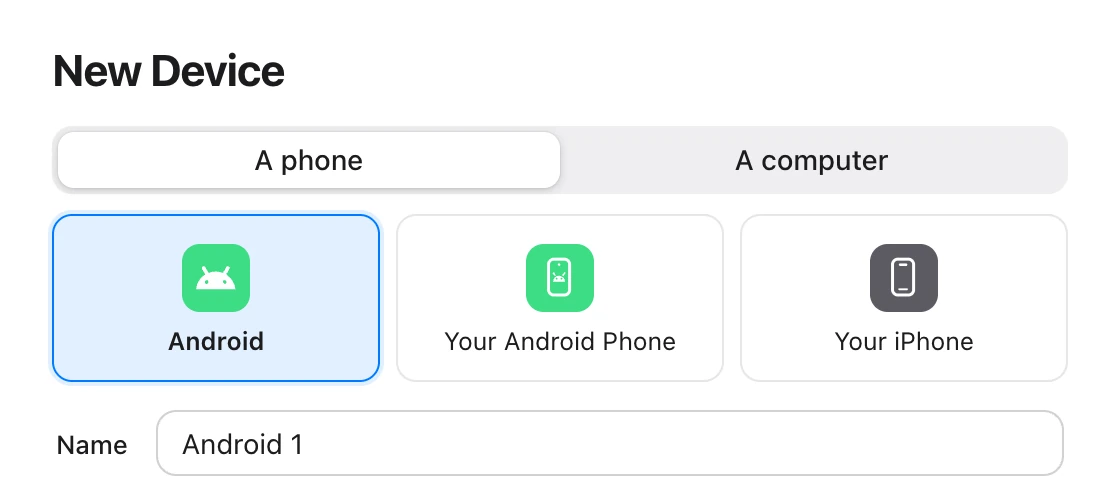
- Press New Device…, choose A phone, then Your iPhone.
- Follow the steps New Device shows on your Mac and on your iPhone to set up iPhone Mirroring.
Your agent works through the iPhone Mirroring window on your Mac. It can look at the screen, tap, swipe, scroll and type.
Limits of the beta
- One at a time. One Mac and one iPhone, and one agent on it at a time.
- Not in every region. Apple doesn’t offer iPhone Mirroring everywhere.
- Screen only. There is no command line, no files and no app list. Your agent works with what it sees on the screen.
- No keys on macOS 27 yet. On macOS 27, Castle can’t press keys on the iPhone, such as Home or Spotlight. Your agent taps instead.
- The mirror window must be on screen. If it is covered, minimized, hidden or on another desktop, Castle tells you, changes nothing and waits for you.
- You’ll see it work. Each action brings the mirror window forward on your Mac, and you see the pointer move.
- No snapshot and no copy, like any phone of your own.
When it stops
Your agent stops and tells you when you are using the phone, when your Mac is locked or asleep, or when the iPhone asks for Face ID or its passcode. It also stops for a call, the camera, and an App Store install.
Castle never unlocks your iPhone, and never starts, stops, resets or wipes it.