

Castle docs
Castle gives your AI agent devices of its own on your Mac, and keeps you in charge. Here is how to set it up, and how to look after it.
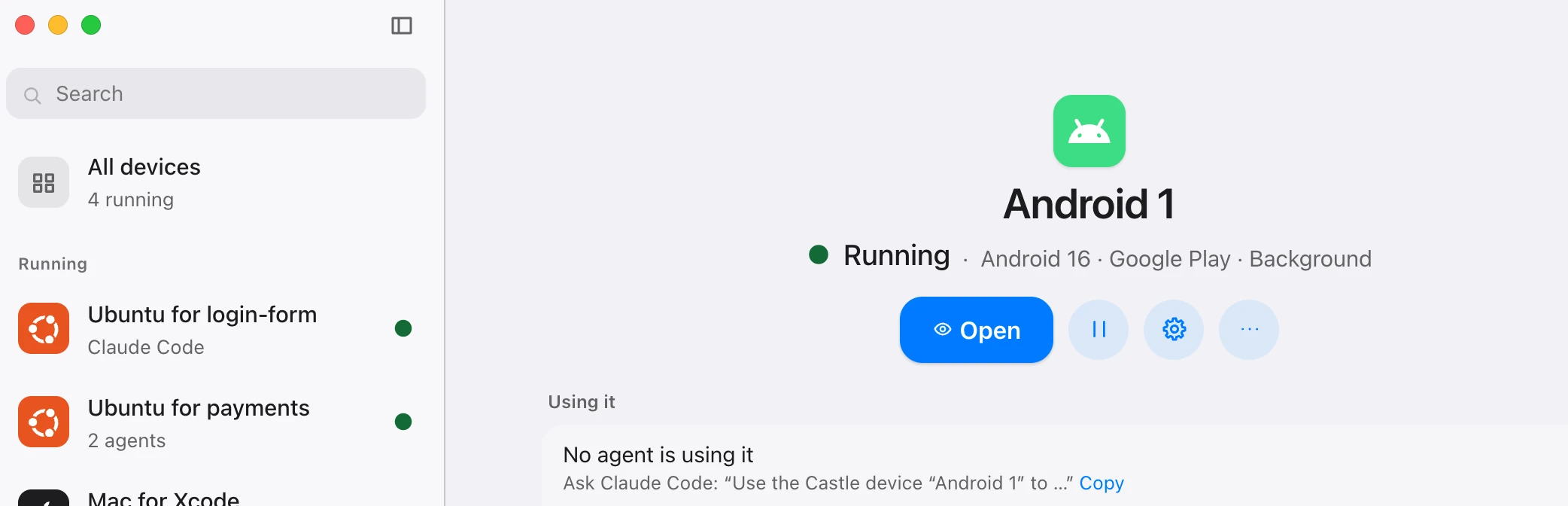
Start here
Three short pages and your agent is at work.
- Install Castle
Download it, move it to Applications and open it.
- Your first device
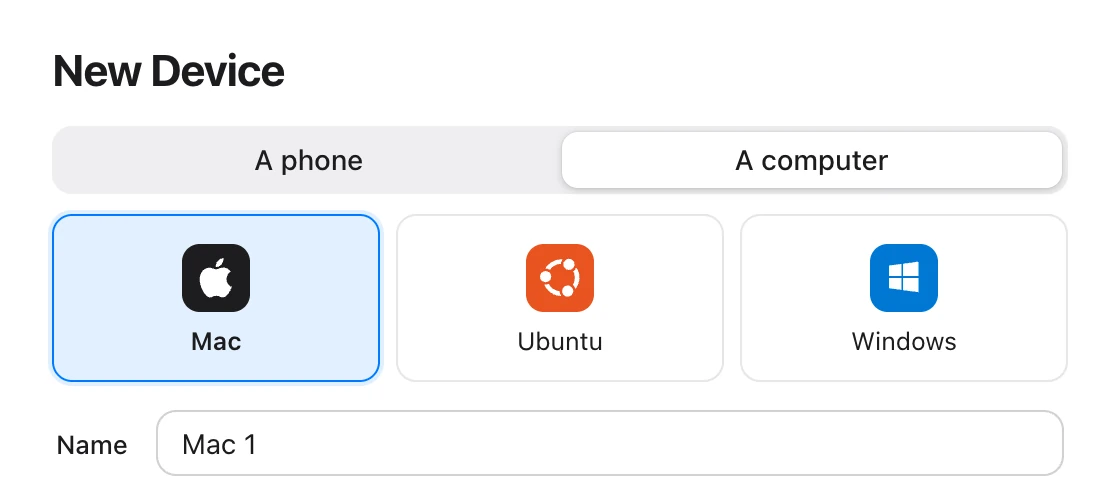
Pick a system in New Device and press Create.
- Connect your agent
One press to link Claude Code or Codex, then give it a first task.
Browse by section
- Get started
Install Castle, make a device, connect your agent and watch its first task. (7 pages)
- Devices
The Mac, Ubuntu, Windows 11 and Android devices Castle runs for your agent, your own phones (iPhone in beta), and how to look after them. (13 pages)
- Agents
Connect Claude Code or Codex, see what agents may do, and stop them when you want. (8 pages)
- Guides
Real jobs to give your agent, with a prompt to paste. (5 pages)
- Command line
The castle command, the commands and what its errors mean. (3 pages)
- Privacy and security
What Castle sends, how devices are kept apart from your Mac, and updates. (3 pages)
- Licenses
Activate your key, seats and Macs, renewals and refunds. (4 pages)
- Help
Answers to common questions, fixes by what you see on screen, and how to reach us. (16 pages)
- Reference
Castle's settings, a glossary and what's new. (3 pages)
Common questions
- Can a device get at the rest of my Mac?
- How do I stop an agent right now?
- Does Castle send my data anywhere?
- Which agents work with Castle?
- What does Pause do, and do I lose anything?
- How many Macs can run at once?
More in the FAQ.
Need a hand?
Tell us what you saw on screen and what you did, and we will help.
All 62 pages
Get started
Devices
Agents
Guides
Command line
Privacy and security
Licenses
Help
- Get support
- Contact us
- FAQ
- Two Macs are already running
- Agents are off
- There is not enough room to make this device
- The network did not answer
- macOS did not let Castle find devices on your network
- Claude Code or Codex is not connected
- Castle cannot reach this device
- A device stopped while it was being made
- Your Mac is short of memory now
- A device can't reach the internet
- Castle closed an app to pause the phone
- Known limitations
- Uninstall Castle