

Android phones
Castle makes an Android emulator your agent can use, and can use your own Android phone. Google Play, Pause, and what Castle never does to your phone.
By the end of this page you will know the two ways to give your agent an Android, and what to expect from each.
An Android emulator
An Android emulator runs in the background. Open its screen in a window when you want to look. Your agent can see the screen and use it.
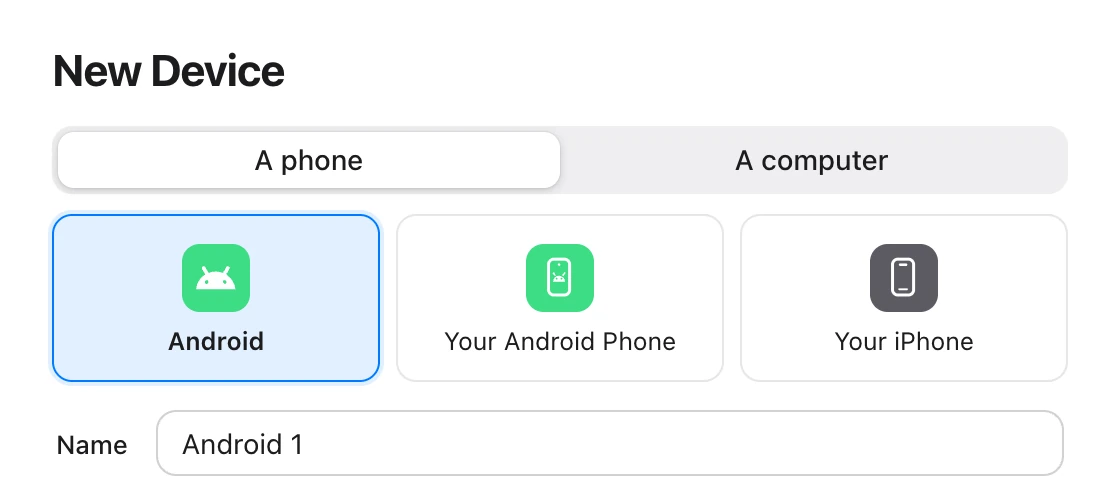
- Press New Device…, choose A phone, then Android.
- Choose Google Play or not, then Create.
With Google Play you sign in to Google yourself. Without it there is no Play Store. A cancelled Android download keeps what it already has, so the next try goes on from there.
When it pauses
When an open app such as Chrome keeps the emulator from saving, Castle closes that app, saves, and says which app it closed. When you press Pause with the emulator’s window open, Castle asks you first.
Your own Android phone
Connect your own Android phone by USB cable or Wi-Fi. Your agent can see its screen, tap, type, open apps and run commands.
- Castle never starts, stops, pauses, resets or wipes your own phone.
- A phone of your own has no snapshot and no copy.
- If the phone is locked, Castle’s guide tells the agent to say so and stop. Unlock it, then tell your agent.