

Install Castle
Download Castle for Mac, move it to your Applications folder and open it. What macOS may ask, where Castle sits in the menu bar, and how updates work.
By the end of this page Castle will be open on your Mac, with its icon in the menu bar.
Check what you need first: Apple silicon and macOS 26 or later.
Get the app
Download Castle from the download page. It always has the newest version, and every release is also on GitHub.
The download page offers the stable release. When the next version is out early as a release candidate, it is offered there too: a release candidate is built and signed like a stable release, and when it holds up the same build becomes the stable one. A copy downloaded as a release candidate has Get release candidates on in Settings › General › Updates; turn it off to get stable releases only.
Install it
- Open the download and move Castle to your Applications folder.
- Open Castle. With nothing made yet, the first window has two doors. One is for your agent: its button reads Connect Claude Code, for example, or Connect Your Agent…, depending on what Castle finds on your Mac. The other, Make a device myself, has the button New Device… (no agent needed).
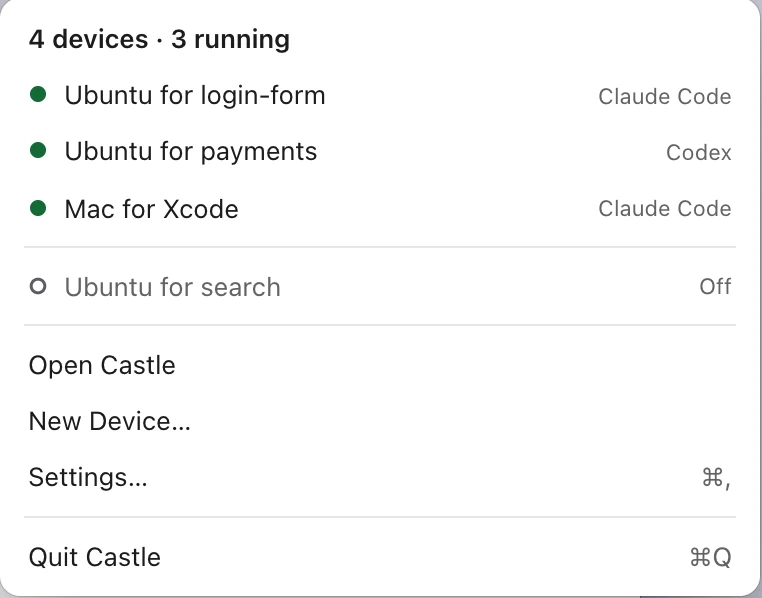
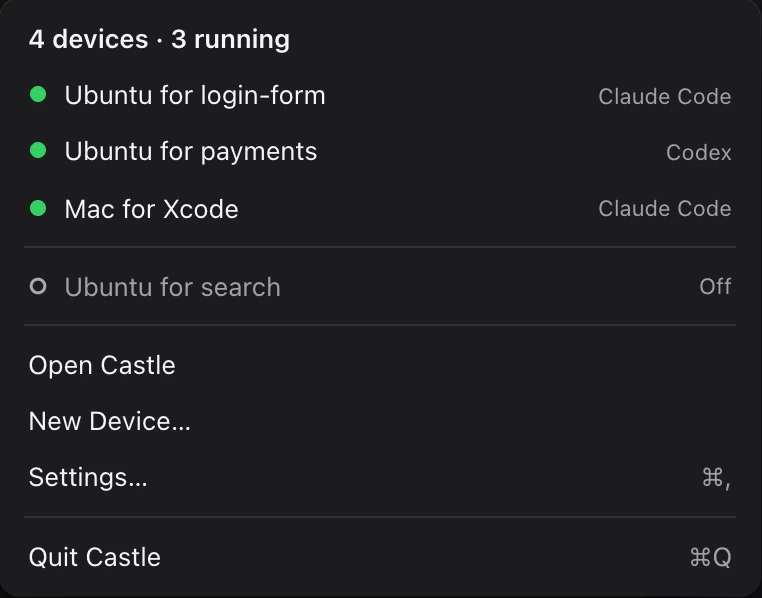
- Look in your Mac’s menu bar. The Castle item is there. It shows how many devices you have, and its menu says how many run and lists your devices.
What macOS may ask
On macOS 27, before your first Mac or Ubuntu device, New Device tells you that macOS will ask whether Castle may find devices on your network. Choose Allow.
Updates
Castle looks for a new version once a day and installs it only when you say so. Before it restarts, it asks, and it pauses the devices that run. You can turn the check off in Settings › General.
Every license includes a year of updates and support. After the year Castle keeps working. The download page always has the latest version. You can use any version released before the date your license page shows; renew to get newer ones.
Activation can come later. Castle shows Not activated until the Mac is activated. Activate your license when you have your key to hand.