

The device window
Open a device to watch it and use it while your agent works. The title bar, Fit, Scale and Actual size, full screen, and what closing the window does.
By the end of this page you will know how to look at a device and what each control in its window does.
Press Open on a device’s page to see its screen in its own window. You can watch your agent work there and use the device at the same time.
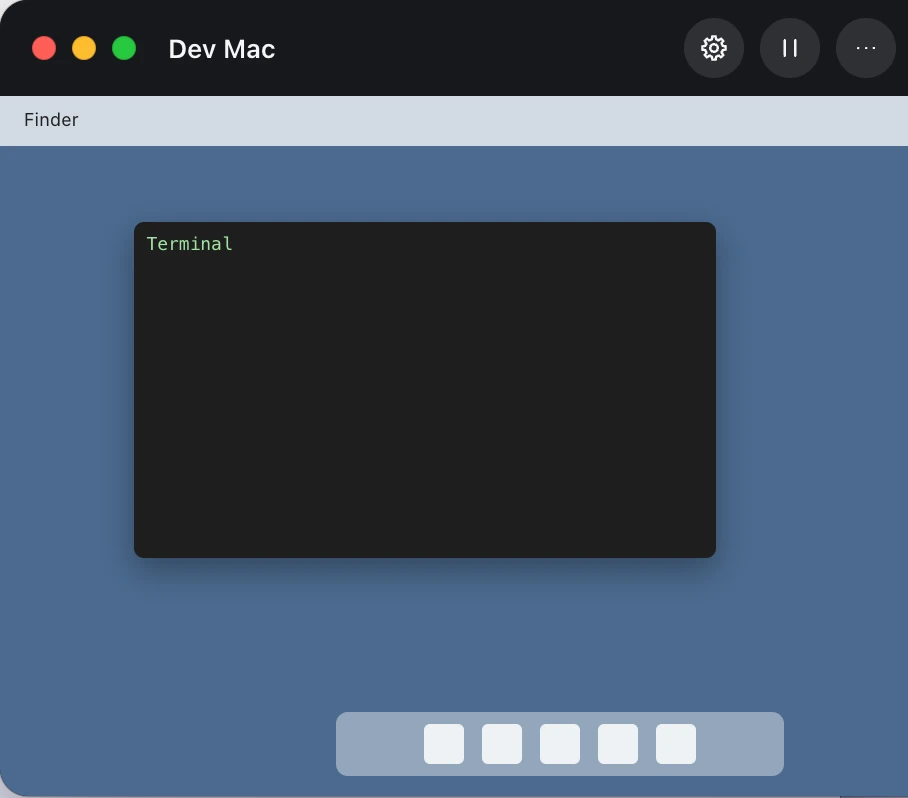
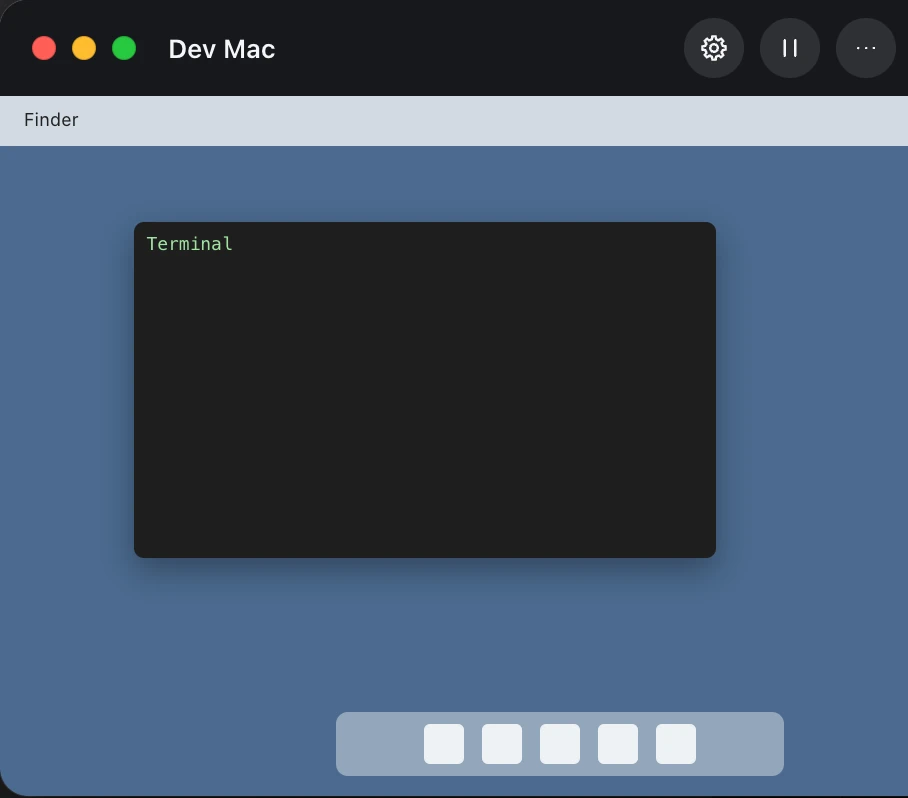
The title bar
The slim bar on top shows the device’s name, a dot for its state and the agent using it. It has Settings, Pause, and a … menu whose Turn Off always asks. The agent’s name at the right end of the bar shows and hides a chat drawer.
The screen
Choose how the screen fits the window: Fit to window, Scale or Actual size. A Mac and an Ubuntu Desktop offer Fit. Where a choice is not offered, the window says why in one line. The green button takes the window full screen, and Castle remembers the size.
The Sharp on Retina switch in a device’s Settings › Screen changes the picture at once, with no restart.
Close the window
Closing the window does not turn the device off. It goes back to Background. To turn it off, use Turn Off in the … menu.
The clipboard
The bar says Clipboard shared when the clipboard is shared with the device. Very large text is not shared, and the window says Too large to share. See Clipboard, folders and network.