

Connect Codex
Connect Codex to Castle from the app or from Terminal, restart it, check the connection, and remove it again. One press, no new app on its side.
By the end of this page Codex will be connected to Castle, and you will know how to check it and how to remove it.
Codex needs to be installed and signed in first. If it is not, Castle says so and gives you a command to run in Terminal. Press Check Again afterwards.
In the app
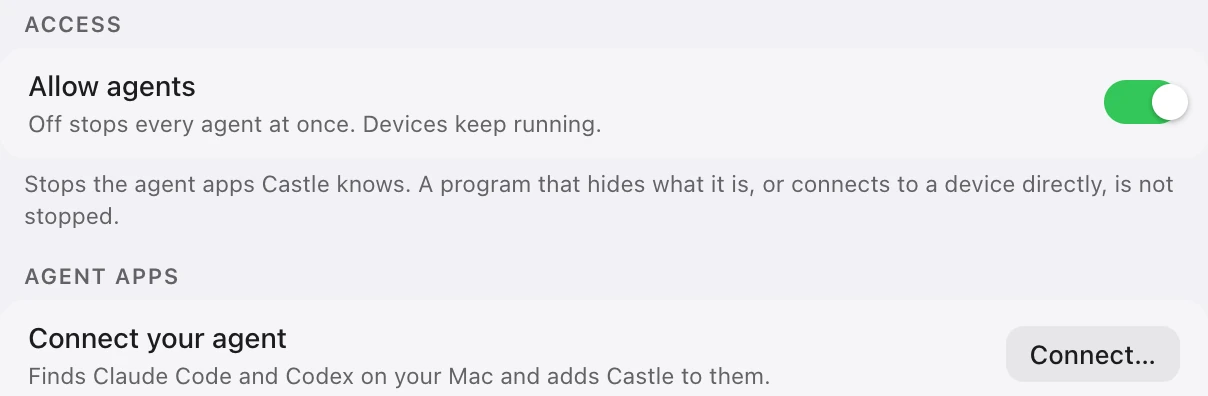
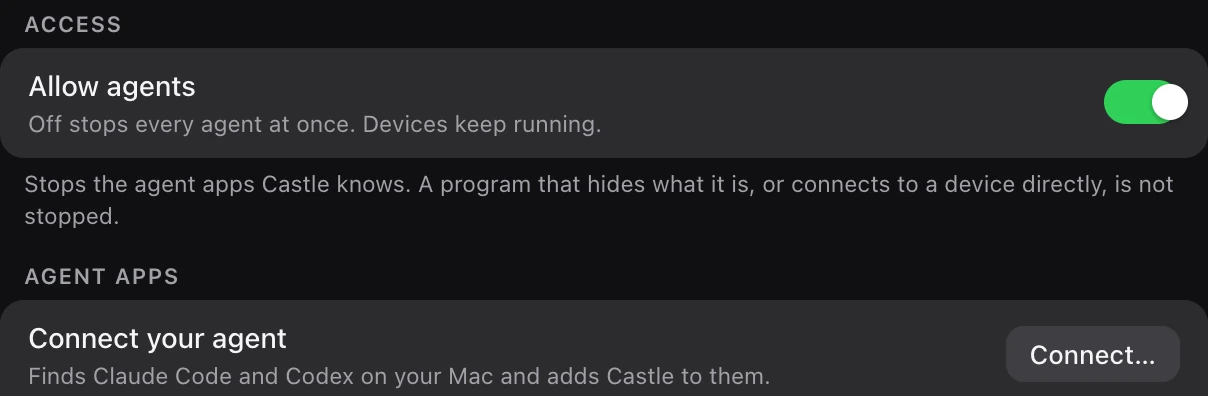
- Open Settings › Agents, or press the button on the first window’s agent door.
- Castle says when it finds Codex on your Mac. Press Connect Codex.
- To see what changes first, press Show what changes. Castle adds its tools and a short guide to Codex, and a
castlecommand to your terminal. You can remove them in Settings. - Restart Codex if it is open.
In Terminal
castle integrate codexThen restart Codex.
Check it
- In Settings › Agents, Codex shows Added, with a Remove button. After you connect again, the agent line in the sidebar updates by itself, and Check Again looks at once.
- In Terminal,
castle integratelists each agent app it finds and whether Castle is connected. - In Codex, ask it to use Castle. A first prompt is on Your agent’s first task.
Remove it
Press Remove beside Codex in Settings › Agents.
If it does not work
- Restart Codex.
- Make sure Allow agents is on, and that the device is not set to Can’t use. See What agents may do.
- Claude Code or Codex is not connected has more.
- Get support.