

Ubuntu devices
Ubuntu comes as Desktop, with a screen, or Server, for the command line. How to choose, how to make one, and what your agent can do in each.
By the end of this page you will know whether you want an Ubuntu Desktop or an Ubuntu Server, and how to make it.
Desktop or Server
- Desktop has a screen. Your agent can open a browser or an app, look at the screen and use it, and you can watch.
- Server is for the command line. It has no screen and no browser. Your agent runs commands in it and says in chat what came out. Choose it for tests, builds and servers.
If a job needs a screen and your agent has a Server, it will say so and ask for a Desktop.
Make one
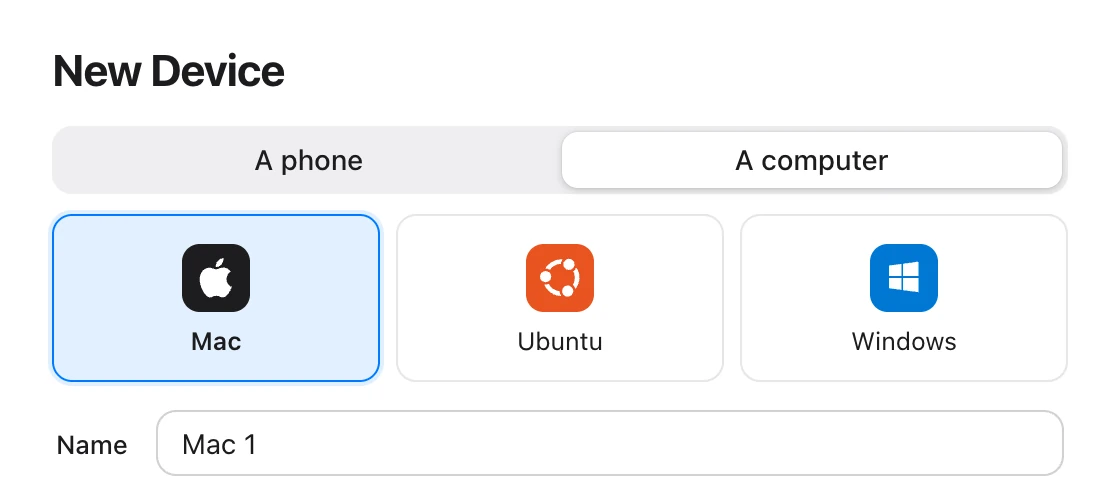
- Press New Device…, choose A computer, then Ubuntu.
- Choose Desktop or Server, then Create.
The first Ubuntu downloads its system. On macOS 27, Castle tells you before your first Mac or Ubuntu device that macOS will ask whether Castle may find devices on your network. Choose Allow; once allowed, an Ubuntu Server device is reached with no wait.
Use it
- A device your agent asked for has no window until you press Open.
- A server running in the device can be reached from your Mac: open a port to it in the device’s Settings › Sharing.
- A folder you share is live.