# Your first device
> Make your first Castle device in one window: pick a phone or a computer, a system and a version, then Create. What you will see while it is made.
By the end of this page you will have a device of your own in Castle's list, ready to open.
A device is a computer or phone that Castle runs for you and your agent. You can make one yourself, with no agent at all.
## Make one
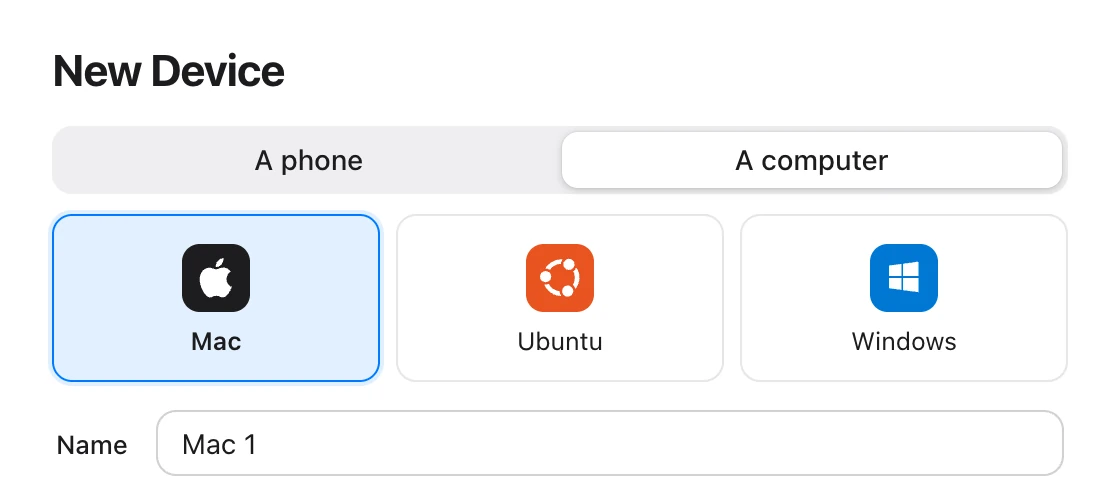
1. In Castle, press **New Device…**.
2. Choose **A phone** or **A computer**.
3. Choose a system: a Mac, an Ubuntu or a Windows 11 for a computer, an Android for a phone. For Ubuntu, choose Desktop (with a screen) or Server (the command line only).
4. Choose a version, where there is a choice.
5. Press **Create**.
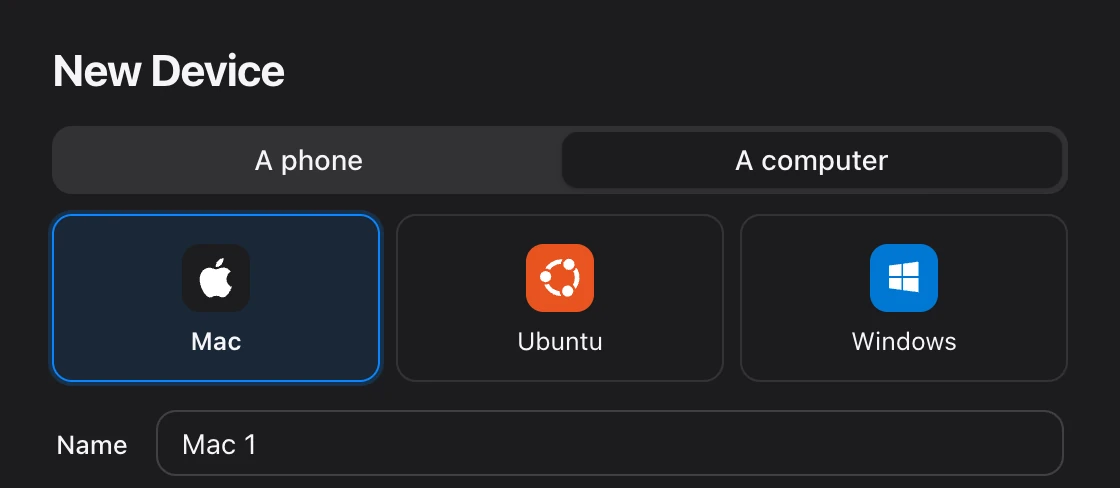
The New Device sheet on A computer. From Castle’s design prototype. The finished app may look different.
## While it is made
Create makes the device and opens its page. The page shows the steps as they go, and a time as a range of minutes.
- **The first device of each kind downloads its system**, so it takes longer. A Mac takes minutes. While a download stands still, Castle shows no time.
- **Some systems ask you to agree to their maker's terms.** Castle asks you, and an agent that needs it waits.
- If it fails, the page says so and gives you **Try Again** or **Delete and Start Over…**.
## When it is ready
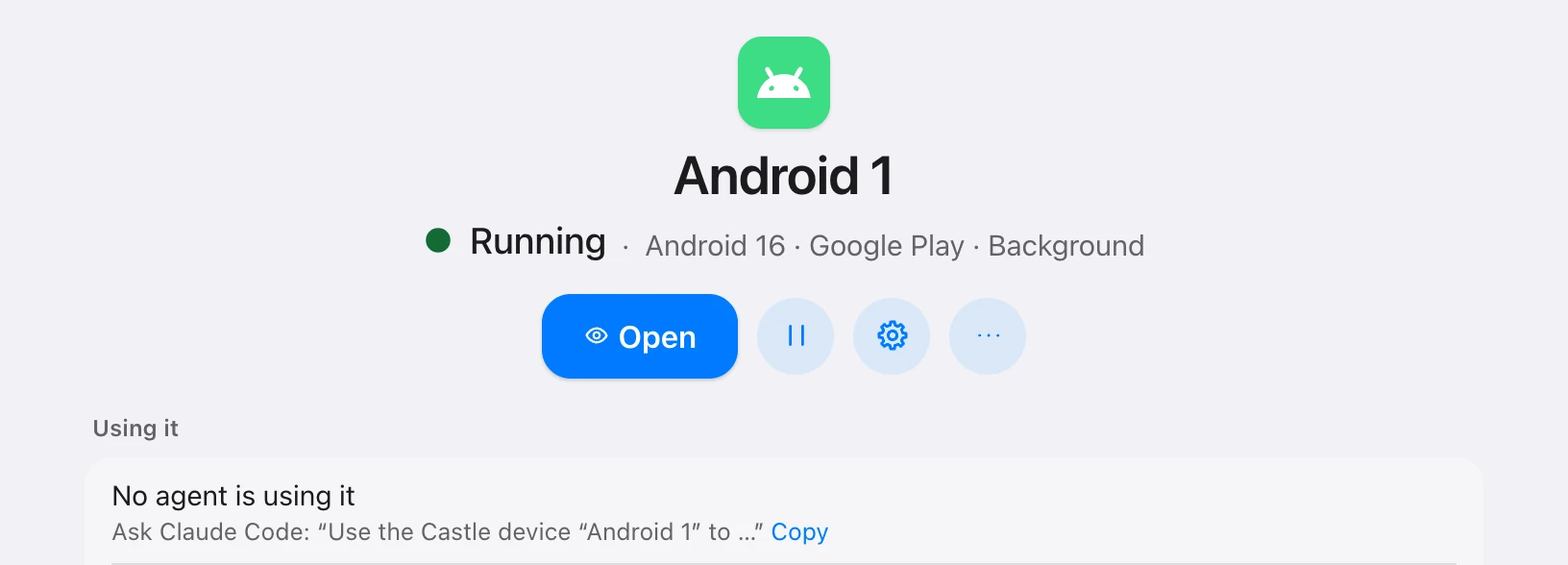
Your device shows in Castle's list as Running, Paused or Off. Press **Open** to see its window. You can use the device there, and later watch your agent work in the same window at the same time.
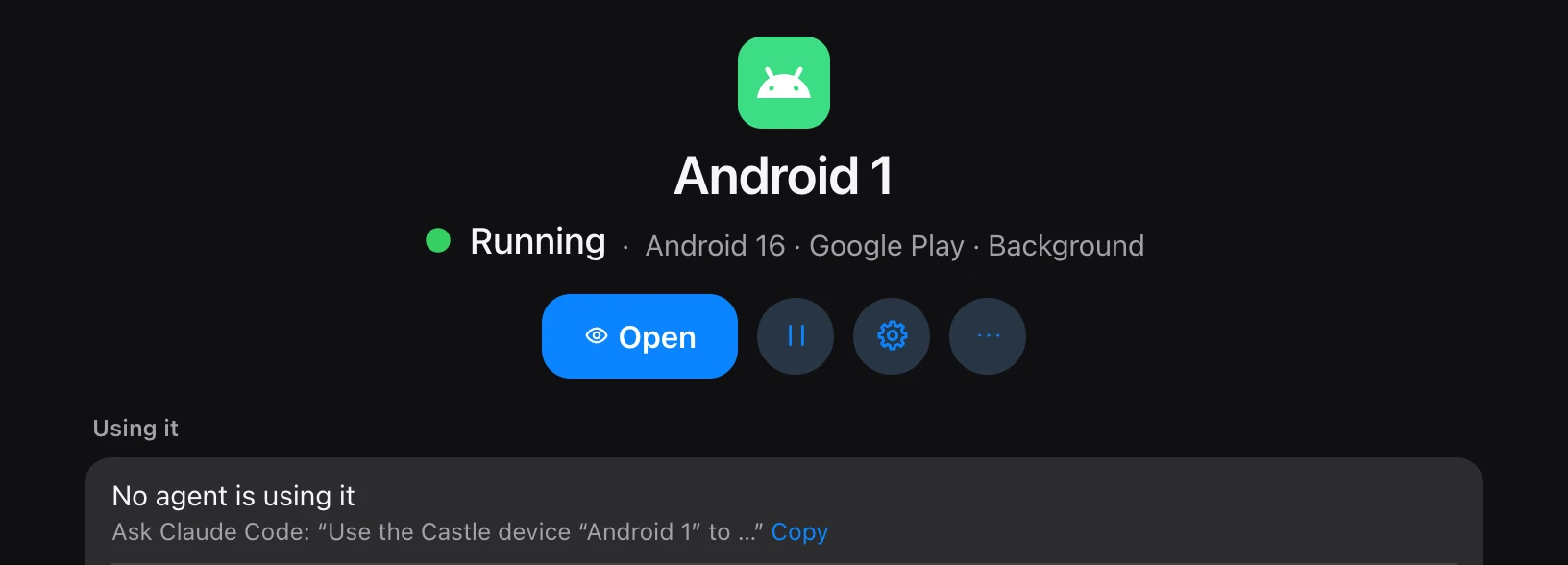
The page of a device that is ready and running. From Castle’s design prototype. The finished app may look different.
An Android runs in the background, and you can open its screen in a window. A Windows 11 device is a Windows PC of its own, also in the background. [Kinds of devices](https://castle.cx/docs/devices/kinds-of-devices.md) says what each can and cannot do.
> [!TIP]
> **No agent yet?** You can stop here and click around. A device page with no agent on it also shows a line to copy, to ask your agent to use that device.
## Next
[Connect your agent](https://castle.cx/docs/get-started/connect-your-agent.md), so it can make and use devices too.
---
Section: Get started · Last updated: 2026-11-20 · Source: https://castle.cx/docs/get-started/your-first-device