# Watch your agent work
> Watch your agent work in a device's window, see its labelled pointer, use the device at the same time, and stop the agent whenever you want to.
By the end of this page you will know how to watch your agent, how to join in, and how to make it stop.
## Watch
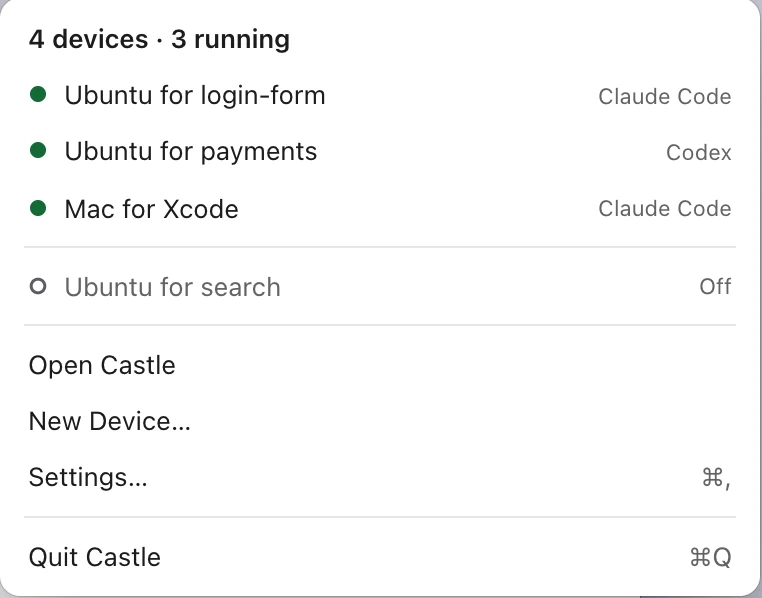
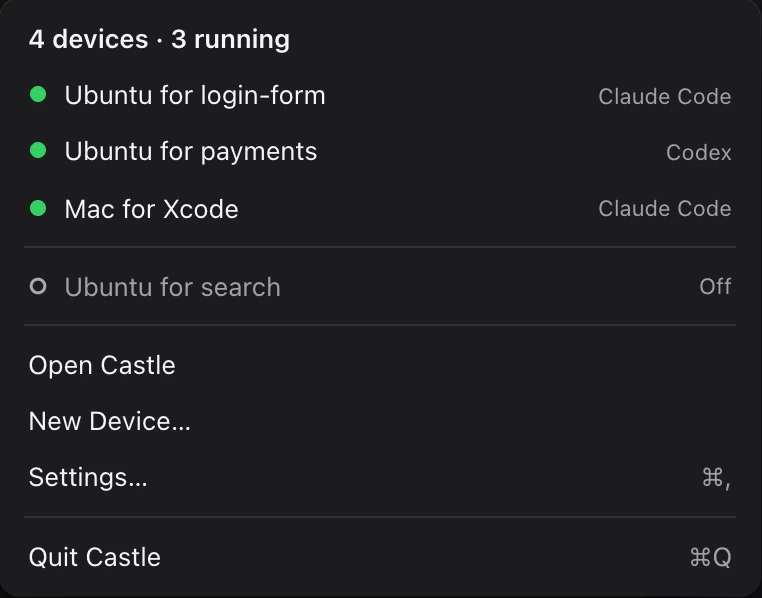
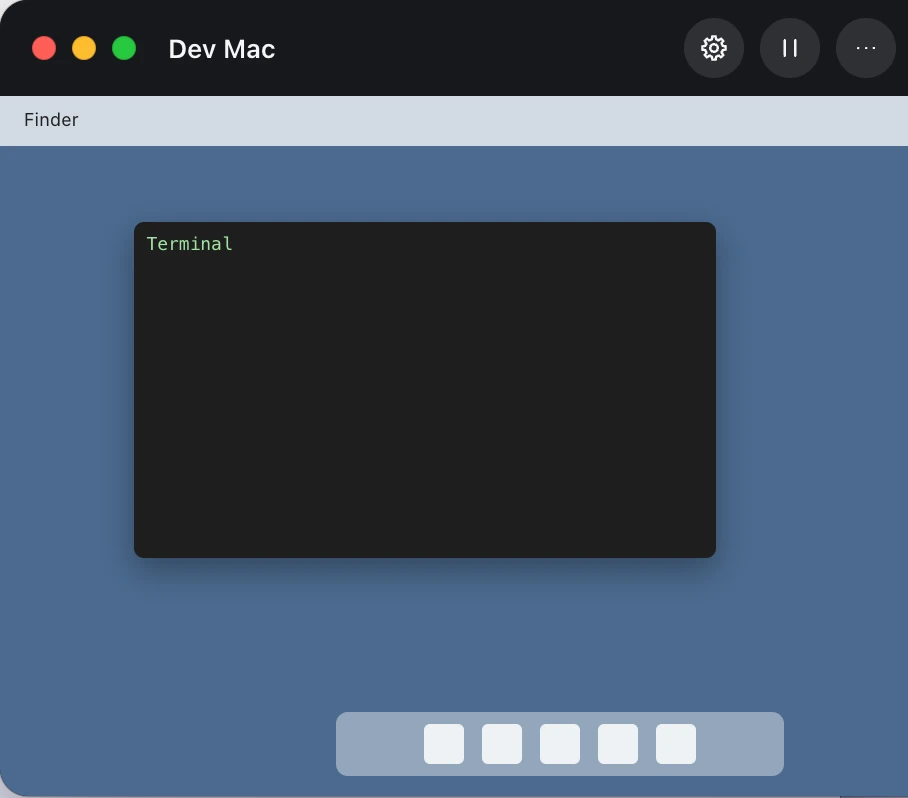
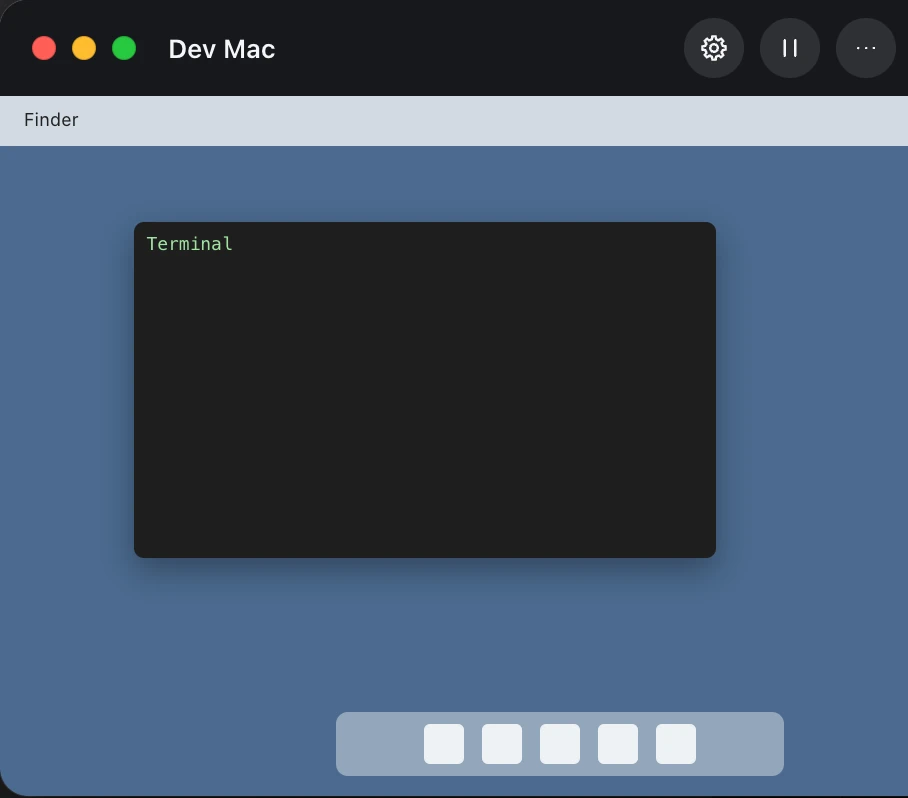
Press **Open** on a device's page. Its screen shows in its own window, and you can watch the agent work there. The agent's pointer carries a label with its name, so you can tell it from yours. The menu bar item shows which devices are running and who is using each.
Castle's menu bar menu. From Castle’s design prototype. The finished app may look different.A device's own window. While the agent works, its pointer shows on the screen, with its name. From Castle’s design prototype. The finished app may look different.
A device an agent asked for has no window until you press Open. Close the window and the device carries on in the background.
## Join in
There is no hand-over button. You and the agent share the device: you can use it at the same time. Click, type, open something. To see what the agent is doing in words, open **Activity**.
## Make it stop
You are in charge. From the quietest to the loudest:
1. Set the device to **Can't use** in its Settings › Agents. Only that device stops.
2. Choose **Stop All Agents…** in the Castle menu, or turn **Allow agents** off in Settings › Agents. No agent may use any device. The devices keep running, and so does anything already running inside them.
See [What agents may do](https://castle.cx/docs/agents/what-agents-may-do.md).
## Put it right
If the agent made a mess, [return the device](https://castle.cx/docs/devices/roll-back-and-copies.md) to a saved point, or remove it and make a new one.
## Next
[Chat with an agent in Castle](https://castle.cx/docs/agents/chat-with-an-agent-in-castle.md).
---
Section: Agents · Last updated: 2026-11-20 · Source: https://castle.cx/docs/agents/watch-your-agent-work